Data Transfer and Management
Almost every researcher’s job involves moving data from one place to another at some point.
Carina’s dedicated data transfer node, c2-transfer.carina.stanford.edu, is the fast, secure gateway for moving your research data into and out of the Carina environment.
This node is only for data transfer. Your available Carina filesystems ($HOME, /project) will be mounted and accessible.
The Easy Way: SFTP Client
An SFTP client is an interactive app that lets you connect to a remote filesystem
A variety of graphical SFTP clients are available for different OSes:
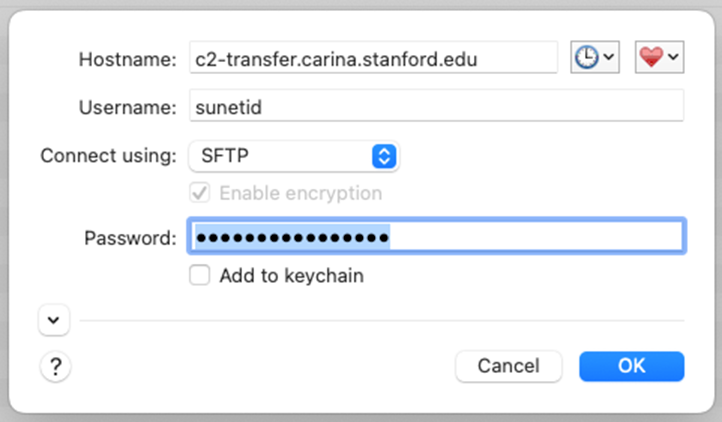
When setting up your connection to the Carina DTN in the above programs, use the following information:
Hostname: c2-transfer.carina.stanford.edu
Port: 22
Username: SUnet ID
Password: SUnet ID password
SFTP via Command Line
If you are sure you don’t want to use an SFTP client, your next best option is SFTP in a terminal via the command line. SFTP documentation
Open a terminal on your local machine, which we will call Laptop.
Connect with sftp <sunetid>@c2-transfer.carina.stanford.edu and your SUnet ID password.
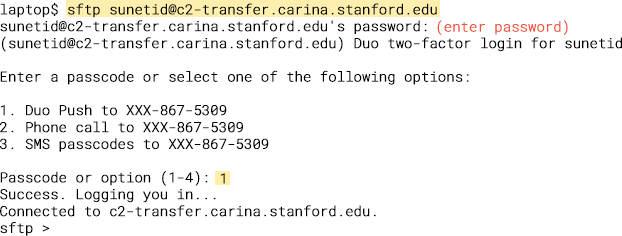
That sftp prompt means we are in! Our data for this example is a folder called pictures-of-cats.
Local & Remote
- Remote commands (on Carina) are used directly:
ls,cd $HOME,pwd - Local commands (on Laptop) are prefixed with l (lower-case L):
lls,lcd $HOME,lpwd
The screenshots below have been annotated to show where the commands happen. This shows the lls -l command being run (on Laptop, because it’s lls not ls), showing the files about to be uploaded to Carina.
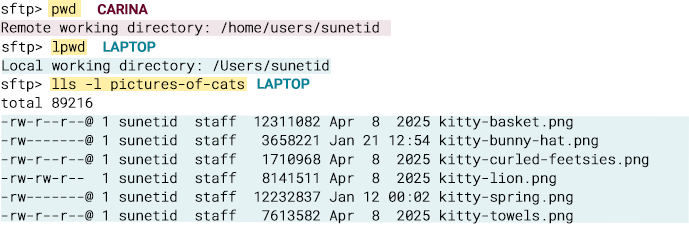
put
Let’s copy that to a folder in $HOME on Carina. It’s a directory, so we’ll need the -r flag for recursive. The terminal will show the progress of each file.
put -r pictures-of-cats
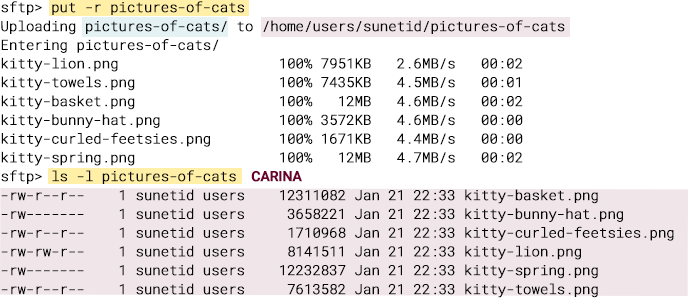
That looks great, except now all the files have the same datestamp.
There’s a fix for that! We need to add the -P flag, which keeps the original files’ full permissions and access time.
put -r -P pictures-of-cats
get & mget

Using the same connection as the put commands, it is possible to pull files down from the remote (Carina) to the local (Laptop) environment using the get and mget commands.
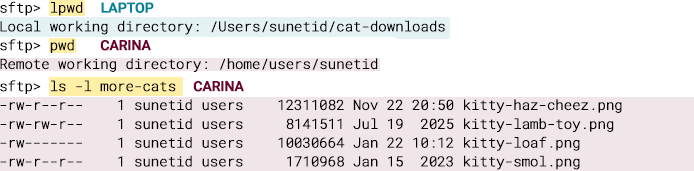
I have a folder on Carina called more-cats, and it is full of good cat content that I want to have on Laptop. I’ve created a directory, cat-downloads, on Laptop to receive the files.
‘get’ is a blunt instrument; it can pick one file at a time. That is not such a bad thing if your data is in a single, neat tarball; it’s wildly inefficient for moving many files.
This is what moving one file with get looks like.
get more-cats/kitty-smol.png

The command to get many files, either by direct path or wildcard selectors, is mget. The m stands for multiple.
This example uses wildcard matching to move all the .png files.
mget more-cats/*.png
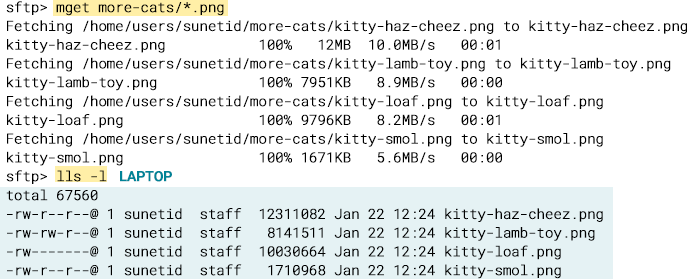
Oh, look, we still have the problem of the datestamps being overwritten, just like when we used the put command.
Fortunately, the solution is the same: the -P flag. Let’s try copying a directory recursively with the -r flag in addition to the -P flag, just to keep things interesting. We also could have used -P with the wildcard mget above.
mget -r -P more-cats
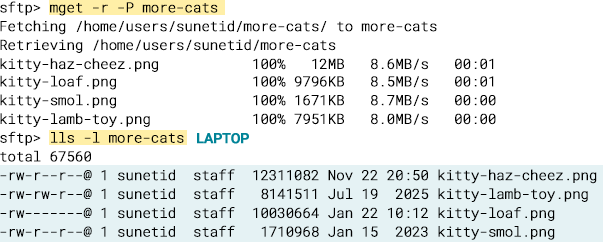
File permissions are individually duplicated on the copied files. File permissions can be manipulated from within the sftp shell, consult the SFTP documentation for more information.
Using Carina with Medicine Box & rclone
After a bit of setup, file transfers between Carina and Medicine Box are easy.