Medicine Box: Setup
This page covers the steps to set up a connection between Carina and Medicine Box which will allow transfers between them using rclone.
Some of the steps will be done via an ssh connection to Carina, but you will also need to use a terminal and browser on a computer that is compliant with AMIE and can access Medicine Box. This machine is called laptop in the following steps.
Ready? Let’s do this.
Step 1: On a laptop, install rclone
Install rclone on your laptop - you will use the laptop’s browser to authenticate to Box later.
Step 2: On Carina, load rclone and configure your Box endpoint
Load the rclone module using module load (ml)
ml rclone
Start creating a new remote endpoint
rclone config
Then type n to start creating a new remote, and name your new remote instance. This example is using the name MedBox for the new remote.
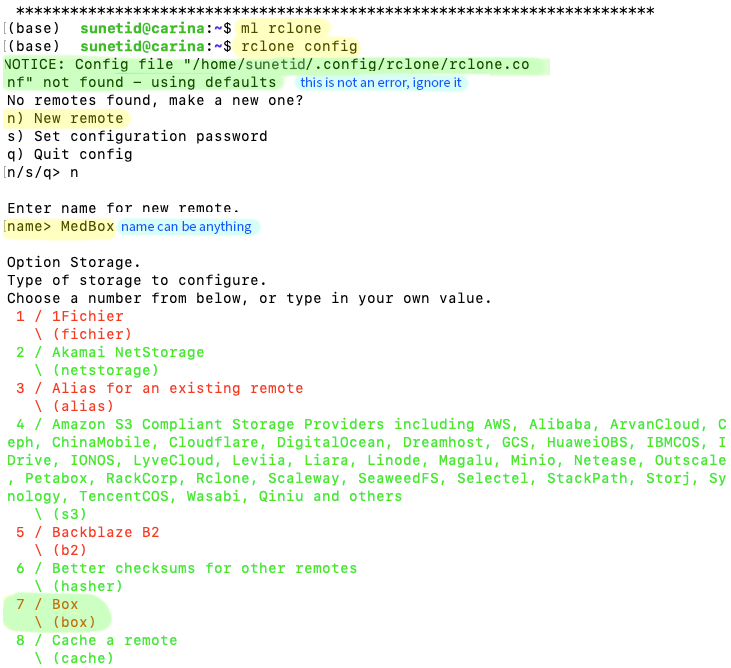
[not shown: a long list of possible destinations]
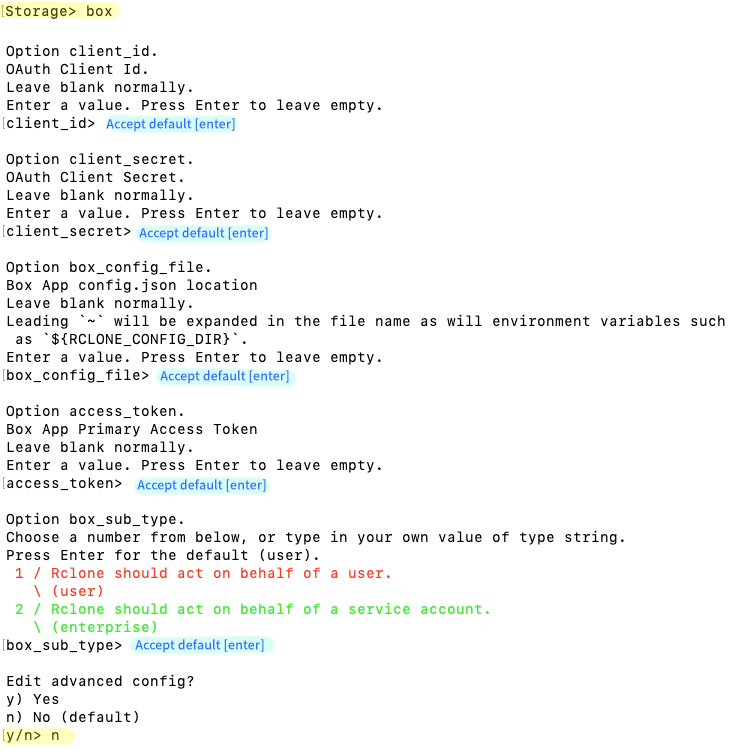
At the next prompt, type in box.
Accept the defaults for the next five prompts, and do not enter advanced config.
The next step is to authenticate to Box, and the answer to the first question is No, because Carina does not have a browser to launch the Box signin page. The next best option is to generate a token on your laptop, which presumably has a browser and can connect to Box.
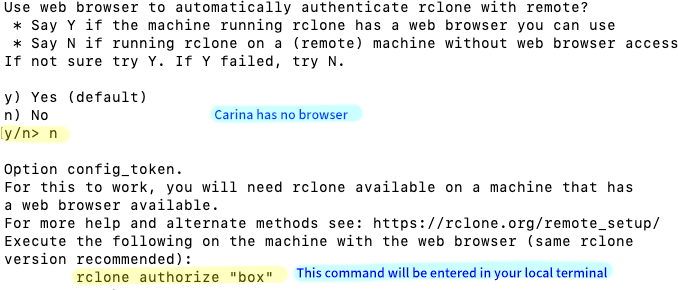
Step 3: On a laptop, get a Box authentication token
Remember when we installed rclone on your laptop? Now it’s time to use it. Open a new local terminal window. Enter:
rclone authorize “box”

A browser window will open; log in to Box with your Stanford credentials as usual and grant access.
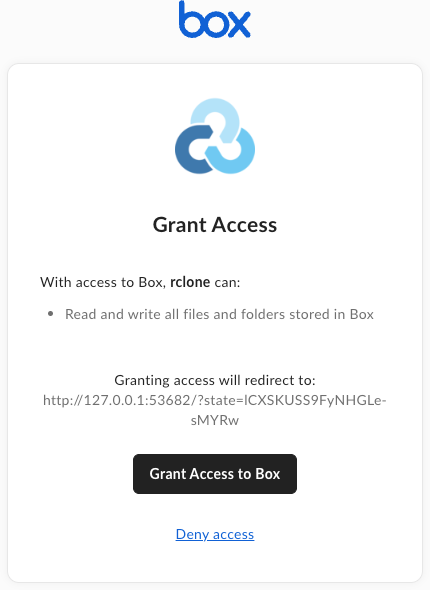
The local terminal will update with a json snippet for you to use in the next step.

Step 4: On Carina, enter your authentication token
Copy the JSON snippet generated in Step 3 and paste it into your Carina terminal at the config_token prompt

Now you have a remote resource called MedBox (or whatever name you chose in Step 2), and you can reach it from Carina!
That was fun! Next, let’s see what we can do with our shiny new remote resource!