Slurm Primer
What is Slurm?
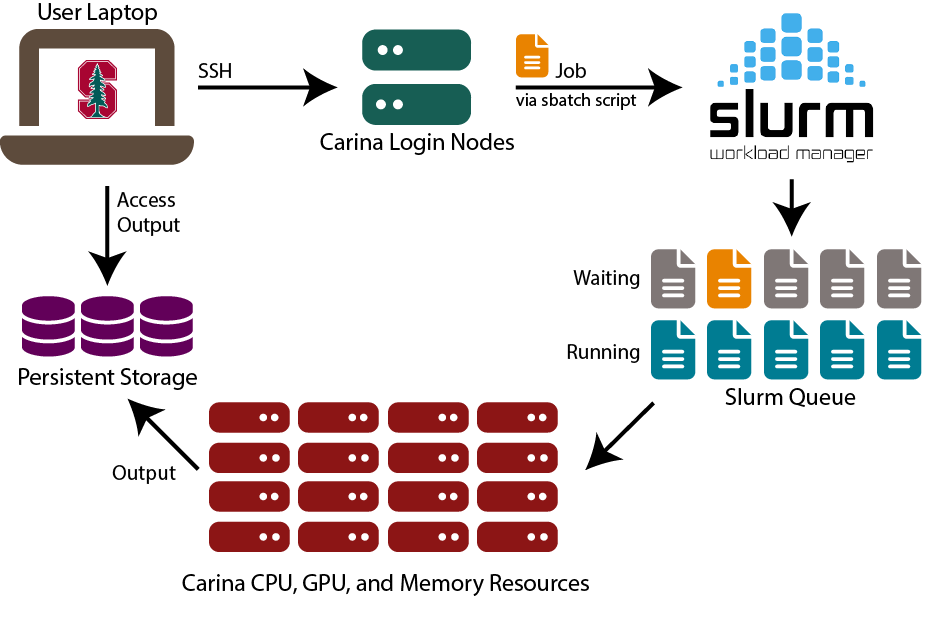
Slurm is a workload manager. Carina is a shared computing environment, and Slurm’s role is to take in everyone’s requests for resources and calculate the most efficient way to allocate them.
Slurm Jobs
A job is a set of tasks that is submitted to Slurm, along with a request for the appropriate computing resources. A job is usually submitted in the form of a script, called an sbatch script.
Requesting Resources
Before asking Slurm for resources, you need to determine how much compute power you need, and for how long. Slurm will only give you what you ask for, so if you ask for too little, your job may not finish before Slurm reclaims your resources. If you ask for too much, Slurm will hold your job in the queue until all requested resources are available, which could slow down your work.
Resource estimation can be tricky. We periodically offer a workshop on it, watch our Classes page for details.
Slurm has some reporting functions which can help you understand your usage.
sbatch
At the most basic level, a sbatch script requests resources from Slurm and then tells it what to do with the resources. It’s a shell or Bash script which follows a few rules.
Any lines starting with #SBATCH are resource requests and other Slurm options. A complete list of options can be found in the sbatch documentation.
Job Submission
Once the submission script is written properly, you can submit it to the scheduler with the sbatch command. If the submission is successful, it will return a job id. If there are errors in the script, it will return error messages.
If you have not specified a name for the job output using the ` –output ` option, you will find it in the working directory with the name slurm-
Sample Slurm sbatch Script
This script is overloaded; you may not need to use all of these settings.
#!/bin/bash
# -------SLURM Parameters-------
#SBATCH --mem=1G
#SBATCH --gres=gpu:1
# Define how long the job will run
#SBATCH --time=12:15:00 #d-hh:mm:ss
# Give your job a name
#SBATCH --job-name=CatStats
# Working directory
#SBATCH --chdir=/projects/drevil/catstats
# Name your output files
#SBATCH --output=CatStats.txt
#SBATCH --error=CatFail.txt
# -------Load Modules-------
 module load anaconda/2024.06
# -------Commands-------
# this loads a previously-created
# conda environment
conda activate catdata
# run the python script
python catdata.py
Common Slurm Commands
srun
Usually, you will submit a job via a sbatch script, which will both request your resources and do your computations. You can submit the job, close your laptop, and return later to see the results.
Another way to interact with Carina is through an interactive command-line session using srun. You can load modules, access your data, and more. It is especially good for debugging and benchmarking your script in preparation for submitting it via sbatch.
An interactive session with srun will end if you close your terminal window. (there is a small asterisk on that statement; there are workarounds but generally, do not trust a srun connection to remain open).
To start an interactive session in your terminal, type:
srun --pty bash
This will give you a compute node in the dev partition with one core for one hour (aka the default on Carina).
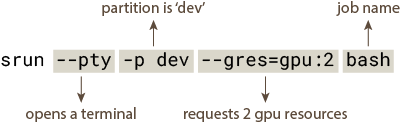
This command requests 2 GPUs on a compute node in the dev partition:
srun --pty -p dev --gres=gpu:2 bash
A quick breakdown of the command:
This is a very basic example of srun, to see more of what it can do, consult the official documentation.
If you finish your session before the requested time is up, you can either close your terminal or use scancel to end the job.
squeue
squeue is a powerful tool for monitoring your activity on Carina. To see the status of your jobs, use the command squeue -u <sunetid>. You will see something like this:
| JOBID | PARTITION | NAME | USER | STATE | TIME | NODES | NODELIST |
|---|---|---|---|---|---|---|---|
| JOBID 80246 | PARTITION normal | NAME bash | USER sunetid | STATE R | TIME 2:33 | NODES 1 | NODELIST c2-comp-01 |
The usual progression of a job is:
If the job was submitted via sbatch, it will start in the PENDING (P) state until Slurm is ready to release it. Usually, if a job spends a long time in this state, it is because the requested resources are in high demand. Please be patient, and review your resource request to see if it can be reduced.
When resources become available and the job has sufficient priority, an allocation is created for it and it moves to the RUNNING (R) state. This state can also indicate that you have an interactive session running.
When the job is finished, its state will be COMPLETED (C). Output files will be available for viewing.
If the job did not complete successfully, its state will be FAILED (F). Have you been staring at the screen for hours? Maybe get up and have a snack before you try again. It will work eventually.
These are the most common states on Carina, but there are more possible states in the Slurm documentation.
scancel
scancel is a useful utility for ending jobs. The typical use case is ending a job started with sbatch or an interactive session started with srun.
We used squeue -u to show our running job with the ID 80246. To end this job, the command would be
scancel 80246
It’s also possible to close all of your own jobs using
scancel -u <sunetid>
If you are running an interactive session using srun the job will end and the resources will be released when you close your terminal window or your laptop drops the connection. If you are finished with the session but still connected to Carina, it’s polite to use scancel to end the session.
Resource Utilization
Curious about your resource usage on Carina? Try the sreport function to see your cpu, memory, and gpu utilization statistics. This example returns information from January 1-31, 2026:
sreport cluster UserUtilizationByAccount -T GRES/gpu,cpu,Mem Start=2026-01-1T00:00:00 End=2026-01-31T23:59:59 user=<sunetid>
Real-time GPU Usage
This command works on a currently running job. Use squeue to find the job id; the STATE of the job must be R for this to work.
srun --jobid=<job id> --pty bash nvidia-smi
How can I learn more?
SchedMD, the maker of Slurm, maintains extensive documentation.