Launching Apps in Carina OnDemand
Carina OnDemand lets you run interactive applications directly on the cluster’s powerful hardware via a web browser.
The 4-Step Launch Process
Getting started is simple and follows the same pattern for any app:
-
Choose Your App: From the top menu, click Interactive Apps and select the tool you want, such as JupyterLab or RStudio Server, or select an application icon on the dashboard.
-
Configure Your Session: A form will appear asking for the resources you need. Tell Carina how much time, CPU power, and memory your session requires. (More on this below!)
-
Launch: Click the form’s blue Launch button. OnDemand will submit your request to the cluster scheduler.
-
Connect: Your session will appear in the “My Interactive Sessions” list and on the dashboard. Once the cluster assigns resources, the card will turn green. Just click Connect to open your app in a new tab!
Understanding the Session Request Form
When you launch an app, you’re asking the cluster for a dedicated slice of its resources. Here’s what the most common options mean:
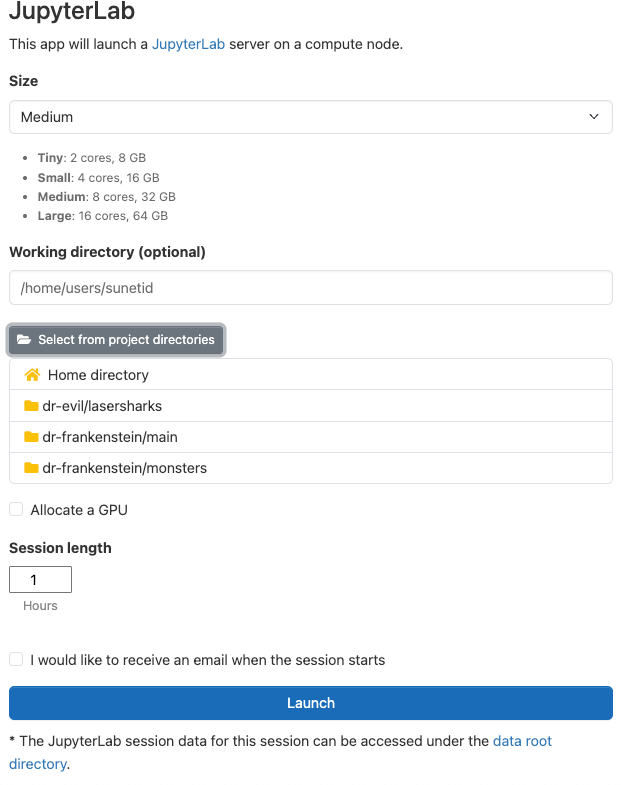
- Size: Choose the resources you need based on your compute needs. Our pre-defined sizes offer the right balance of cores and memory, and keep the resource requests tidy.
- Working directory (optional): Choose where your app opens — defaults to your home directory. Click Select from project directories to pick from your projects, or type any valid path directly. Invalid paths fall back to home. (Not available for Carina Desktop.)
- GPU: If your work requires a GPU, you can request one here. Note: GPU nodes are a limited resource.
- Time Limit: How long you want your session to be active. Your session will automatically close when this time is up. Two hours is the time limit.
- Email Notification: Carina can send you an email when your session starts. This is especially useful if you are requesting a lot of resources and expect to be in the queue for a while.
Pro Tip: Always request only the resources you truly need. This helps your session start faster and leaves resources available for other users.
Managing Active Sessions
All your running, pending, and finished apps appear on the My Interactive Sessions page.
For an active or starting session, you can:
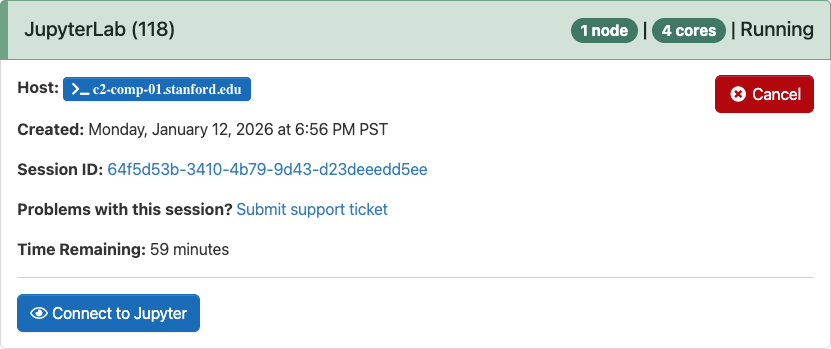
- See the Status: Quickly check if your session is starting, running, or finished.
- View Details: See how much time is left and what resources you requested.
- Connect: Reconnect to any active session.
- Stop a Session: If you finish before the your requested time, click the cancel button to end your session and free up the resources for others.
For a finished session, you can:
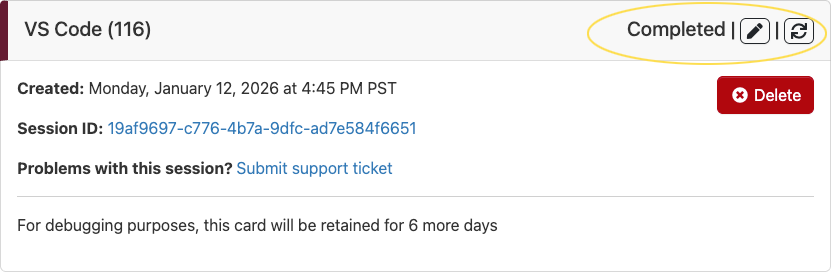
- Repeat the session: The circled buttons will:
- open a new form for the app with this session's attributes pre-filled
- launch a session with the same attributes as the finished one.
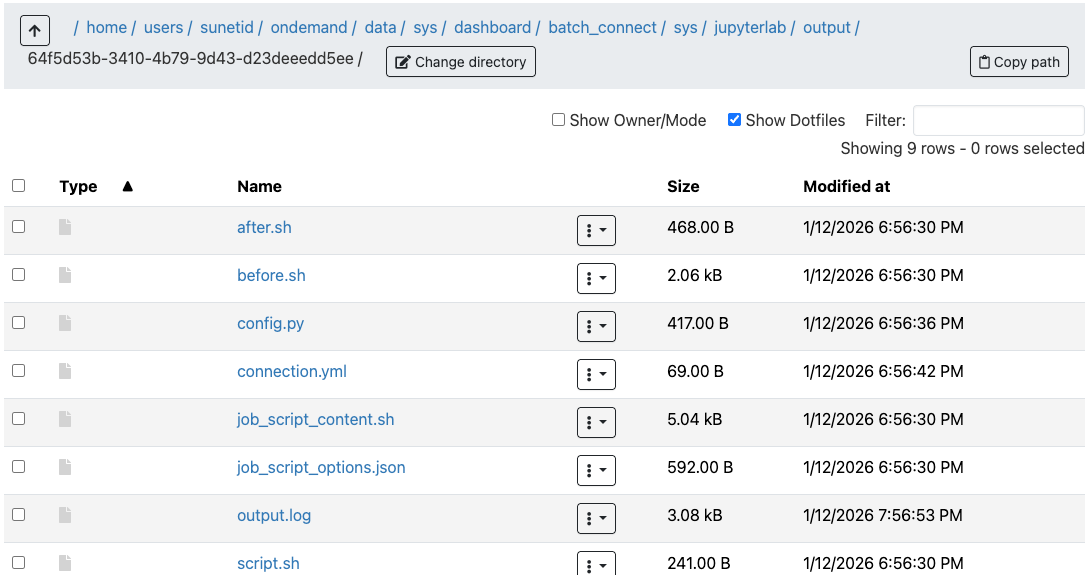
- See output: click on the Session ID to see files that were created by this session
- Open a Support Ticket: Clicking on the support ticket link from a session adds the session data to the ticket and helps the Carina team troubleshoot your issue.
- Delete: The session card says when it will be automatically deleted, but you can remove uninteresting sessions from the list yourself with the delete button.