Carina OnDemand
Use the Carina OnDemand web interface to manage files, submit and monitor jobs, check queue status, and run powerful applications such as JupyterLab, MATHLAB, Visual Studio Code, R Studio, and more.
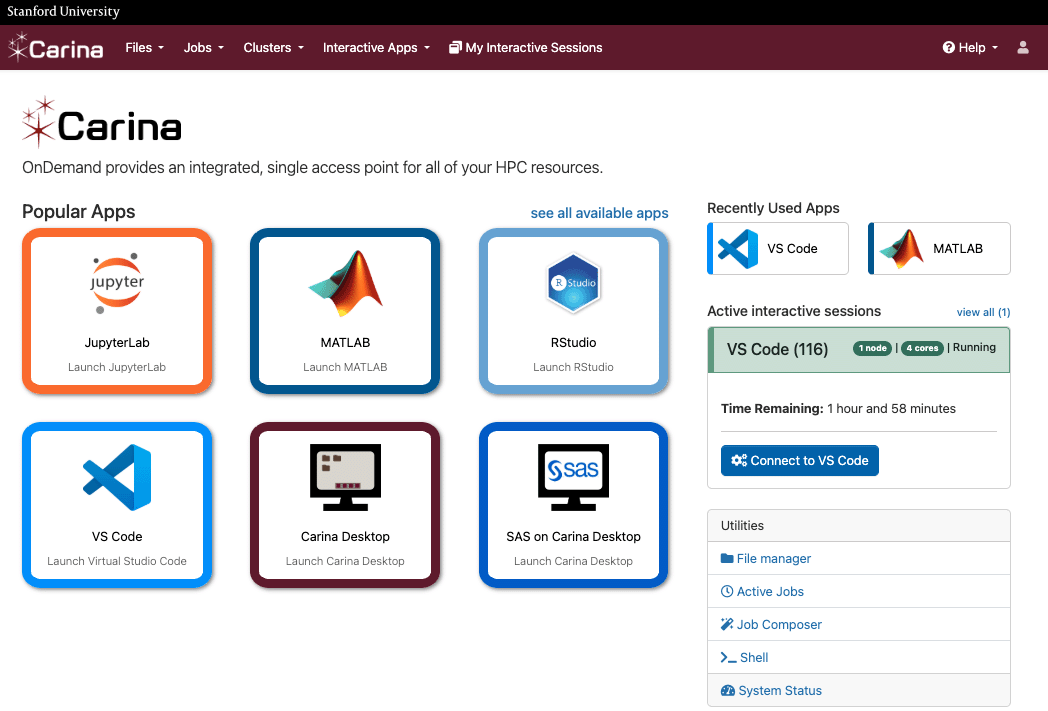
The Dashboard at a Glance
The top menu bar is your primary navigation tool. Here’s what the main sections do:
Files: Browse, edit, and manage your files in your home directory.
Jobs: Create, submit, and monitor your computational jobs.
Clusters: Open a full shell terminal right in your browser.
Interactive Apps: Launch applications like Jupyter Notebooks, RStudio, and more.
Help: Find documentation or file a support ticket.
File Management Made Easy
From the top navigation, select Files to open a file browser for your $HOME directory.
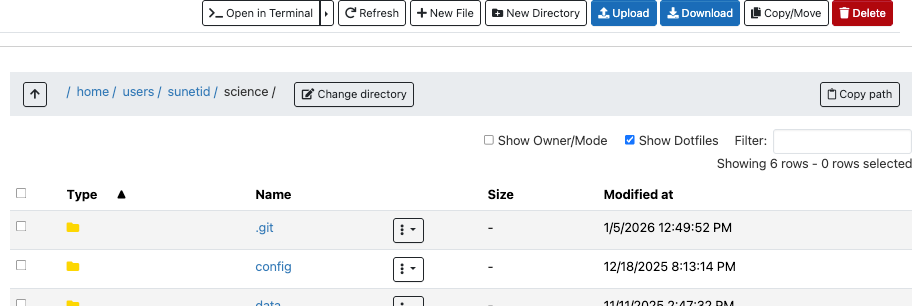
With the file manager, you can:
Upload & Download: Move files between your computer and Carina. The file manager supports uploads up to 130 MB and directory downloads up to 1 GB. For larger transfers, use SFTP or the transfer node.
Create & Edit: Make new files and directories or edit existing ones with a built-in text editor.
Move & Rename: Easily organize your file structure with simple drag-and-drop or menu clicks.
Open a Terminal: Open a shell for your current path.
Managing Your Jobs
The Jobs menu gives you two powerful tools for interacting with SLURM.
1. Job Composer
The Job Composer helps you create and submit batch jobs without writing scripts from scratch.
- From a Template: The easiest way to start. Select a pre-configured template, fill in your specific commands and parameters, and submit.
- From Scratch: Create a new job file directly in the browser, giving you full control over the script.
Once you’ve created a job, simply click the Submit button, and OnDemand will send it to the Carina scheduler for you.
2. Active Jobs
Select Active Jobs to see a real-time list of all your running and queued jobs. This page lets you quickly check a job’s status, see how long it’s been running, and access its output files once it completes.
Need a Terminal? No Problem.
If you ever need to run a quick command, you don’t have to leave your browser. Just navigate to Clusters > Carina Shell Access to open a fully functional terminal session.
This shell lands you on a login node, so the same login node resource limits apply. It is great for quick tasks: editing a file, checking a queue, submitting a job.