Using Codex with Carina
Ready to add some AI to your work? Say hello to Codex.
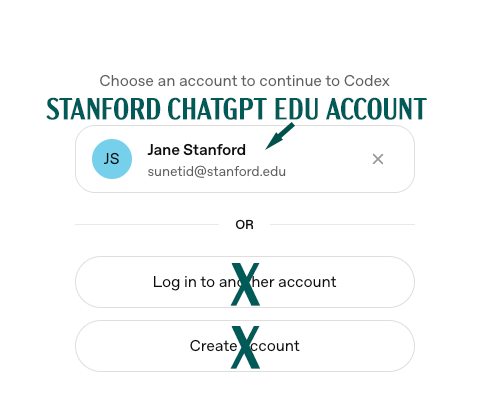
Prerequisite: Get an OpenAI ChatGPT Edu Account
You will need to request an account on Stanford’s ChatGPT Edu instance from UIT (not from Team Carina). You cannot use Codex on Carina until you have an account that is covered by Stanford’s agreement with OpenAI, so other ChatGPT logins will not be accepted. Please review this policy document while you wait for your account to be provisioned.
Load Codex & Log In
Start by connecting to Carina in your favorite terminal program. Do not use the Carina OnDemand browser-based terminals for this; they have a 30-minute time limit.
1. Get a node
srun --pty bash
2. Module Load
This next bit is optional; if you want to see all of the available software modules, enter:
ml avail
ml is short for module load. Software on Carina is loaded via modules that have been compiled and optimized to run on our hardware. ml avail lists all of the modules we have installed. More about software and using module load.
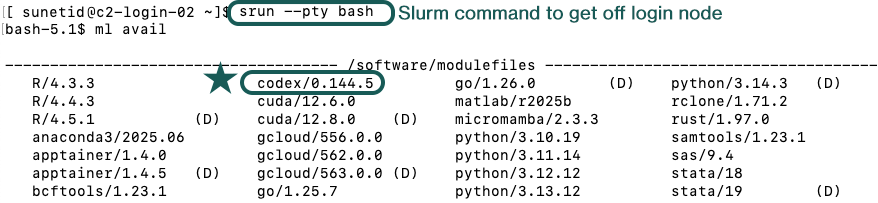
At the time of this snapshot, there is one version of Codex; when we add more, the most recent version will always be the default and marked with ‘(D)’, as shown for the R module.
Load Codex Model
Let’s get Codex!
ml codex
Confirm installation by checking the version.
codex --version
Codex may throw an error after commands; it’s a Codex bug that should be fixed on future releases. Ignore it.

3. Authentication
This will start the login flow, which will use the browser on your laptop.
codex login --device-auth
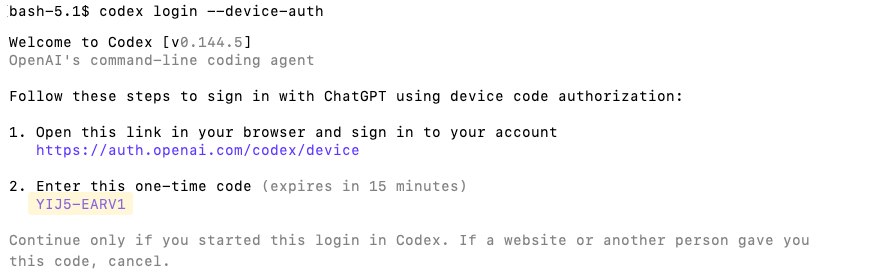
Copy the one-time code from the terminal and go to https://auth.openai.com/codex/device
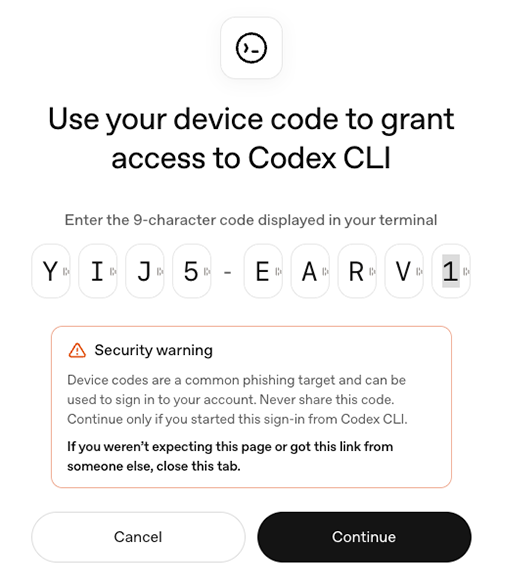
Copy your code into the authentication screen:
It worked!

When you go back to your terminal, you will see that the message “You have successfully signed in” has appeared. You are ready to work with Codex!