Medicine Box: Working with Files
This page covers some of the quirks of interacting with files on Medicine Box from inside Carina. It assumes that you have set up your connection using the setup tutorial.
To start, connect to Carina via ssh and load rclone.
module load rclone
Looking around Medicine Box from Carina
listremotes
To see the remote resources you have configured, use the listremotes command.
rclone listremotes

This shows the remote resource MedBox, which was created in this tutorial.
lsjson and ls
First, let’s see what rclone can see on Box by asking it to list the remote resource in JSON format. The advantage of the JSON output is that it will call out the path.
rclone lsjson [remote resource]:
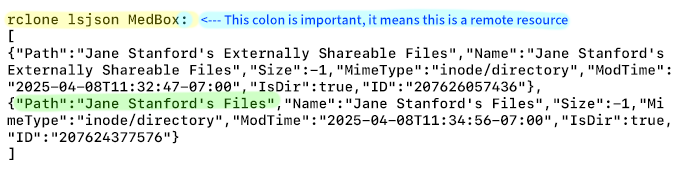
This is the Internet, so my test folder is called Pictures of Cats. Choose or create a folder in your own Box for the next step.
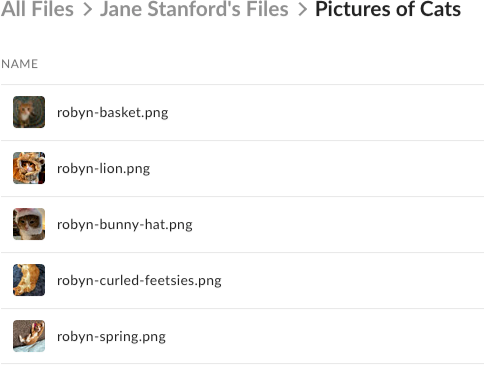
The path to this folder is going to be MedBox:”Jane Stanford’s Files/Pictures of Cats” so if we do a simple list command we will see the folder contents:
rclone ls [path]

If you can list Box files from Carina, your setup is valid and you can move on to moving files around.
Copying Files with rclone copy
The rclone copy command is powerful, with a robust set of optional flags. The official documentation page is well worth reviewing.
Let’s look at how we can use rclone to copy files between Carina and Medicine Box. We will work on the same files as the example above.
The basic form of the copy command is rclone copy [options] source destination
After the initial copy, rclone copy only copies new files
rclone copyis aware of the files already at the destination, and will not copy a file if an identical file already exists there. If I run the rclone copy command twice, nothing will happen the second time.
As an experiment, I changed the file robyn-bunny-hat.png by resizing it and adding a caption, then uploaded it to Medicine Box in place of the original.
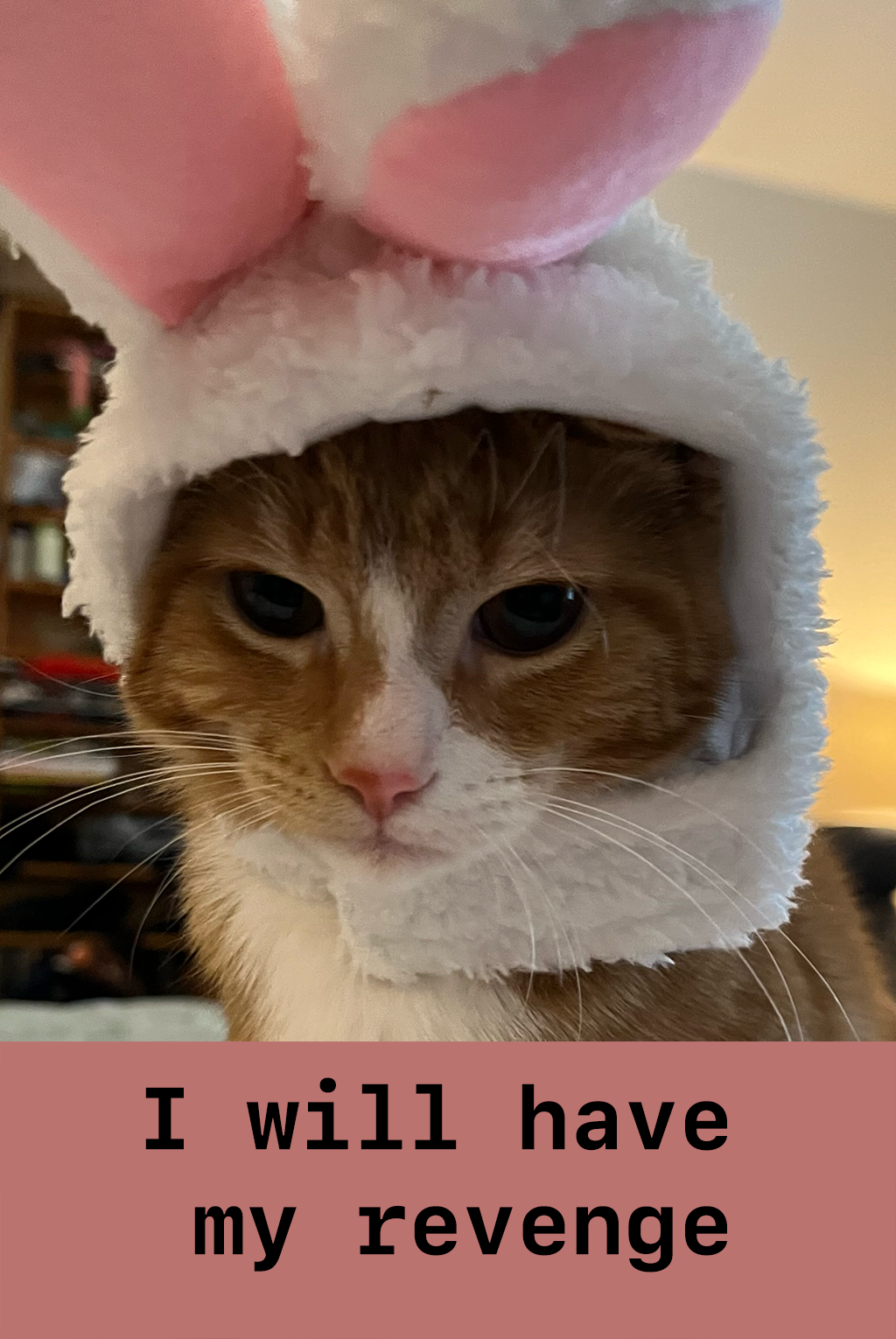
This time, when I run the command again, just the updated file is copied.

If you copy a new version of a file from Carina to Medicine Box, it will be versioned, so old versions are accessible.

If you copy a new version of a file from Medicine Box to Carina, the old file will be over-written.
options: dry run, verbose, progress, and interactive
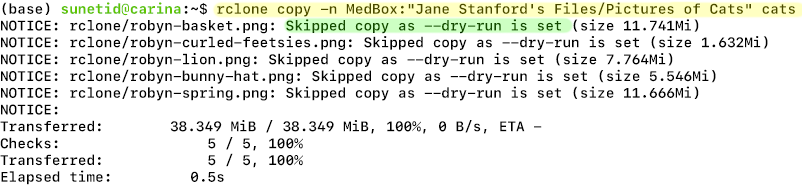
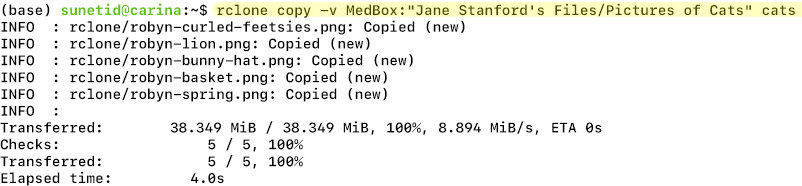
These examples show copying the files in the Pictures of Cats directory on Medicine Box into a directory called cats on Carina.
dry run
-n, –dry-run is a way to preview the changes that will be made by running rclone copy. The changes will not be made until the dry run option is removed. Taking a few extra minutes to confirm that you have your paths correct is a smart move.
verbose
-v, –verbose will give you more information about the transfer’s progress, and can be helpful when doing a high-stakes copy.
progress
-P, –progress will show real-time upload progress in your terminal
interactive
-i, –interactive allows you to approve each file transferred; this is more time-consuming but can be useful when you do not want to copy everything in a directory.

Success!
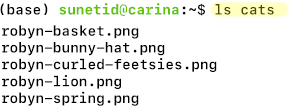
Here are the files in /cats on Carina
We hope this has helped you get started using rclone. If you have problems or questions about using rclone, email us at srcc-support@stanford.edu(link sends email)